

How to Build Your First App on Newly and Start Making Money From It
The complete step by step guide, from idea to paid app on the App Store. No code required.
You commented. You're here. Let's build something.
This guide is going to take you from a blank screen to a live, monetised app on the App Store or Google Play Store. No prior experience required. No developers needed. No months of learning to code first.
Just your idea, Newly, and this guide.
Let's go.
Before You Start: The One Thing Most People Skip
The number one reason first builds go badly isn't the tool. It's starting without a plan.
Most people open Newly, start typing, get a result that's almost right, type "fix it" seventeen times, and end up with something confusing and broken that doesn't look anything like what they had in their head.
The fix is simple: spend 10 minutes planning before you touch anything else. We're going to do that first.
Step 1: Plan Your App
Where: Newly → Chat → Plan mode
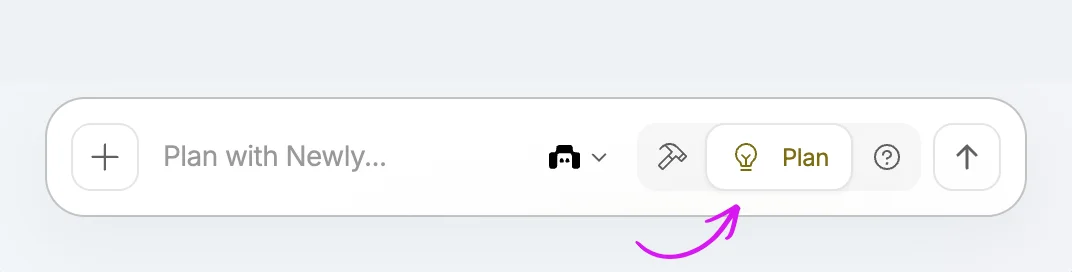
Plan mode is where you tell Newly what you're building before you start building it. Think of it as briefing a very capable developer. The clearer your brief, the better the result.
Open Plan mode and answer these questions in your prompt:
- What does your app do? One sentence. Be specific. Not "a fitness app," "an app that helps people track their daily water intake and sends reminders every two hours."
- Who is it for? Describe your user. Age range, situation, problem they have that your app solves.
- What screens does it need? List every screen your app needs. At minimum: a home screen, your core feature screen, and a settings or profile screen. Don't worry about getting this perfect, you can add screens later. But having a list stops you from building in circles.
- What should it look like? Describe the visual style. Clean and minimal? Bold and colourful? Dark mode? Light mode? What colours? What kind of typography? If you don't know quite yet, that's fine. Skip this description, let Newly design it for you, and make tweaks where you'd like after the build.
Example Plan prompt: "I want to build a daily habit tracker app for working moms aged 25–45. It needs a home screen showing today's habits with checkboxes, a habit creation screen where you can add a new habit with a name and frequency, a progress screen showing a weekly streak, and a settings screen. Visual style: clean, minimal, off-white background, soft pink accent colour, rounded corners on all cards."
Step 2: Build Your App
Where: Newly → Chat → Build mode
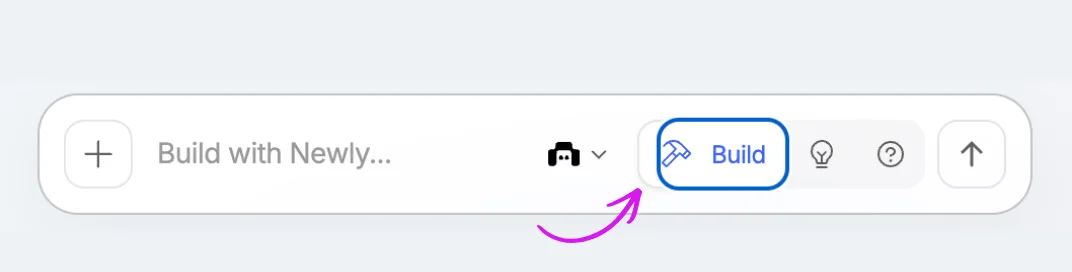
Now you build. Switch to Build mode and say, “Build the plan we just wrote. Start with the home screen.” Review that screen before moving to the next.
The golden rule of prompting in Build mode: describe everything.
Not just what the screen does, but what it looks like, where things are positioned, what font size feels right, what the button says, what happens when you tap it.
Bad prompt: "Make me a home screen"
Good prompt: "Build a home screen with a white background. At the top, a greeting that says 'Good morning, [name]' in 24px bold dark grey text. Below that, a scrollable list of today's habits, each one is a card with soft shadow, the habit name on the left in 16px medium weight, and a circular checkbox on the right. At the bottom, a fixed pink button that says 'Add Habit' in white 14px bold text. No navigation bar."
The difference in output between those two prompts is enormous.
A few prompting rules that will save you hours:
- One thing at a time. Don't prompt an entire app in one go. Build one screen, review it, then move to the next. Trying to build everything at once produces everything at once, and fixing five screens simultaneously is a nightmare.
- Describe what you don't want. "No sidebar", "no header", "don't add any icons I didn't ask for," constraints are as useful as descriptions.
- When something goes wrong, describe exactly what's wrong. Not "fix it," but "the button is too wide. Make it 60% of the screen width, keep it centered, same pink colour." The AI can only fix what it understands.
Before a big change, note the version you like. Use Undo or Restore to here if you want to go back.
Step 3: Polish Your App
Where: Newly → Chat → Preview
Once your screens are built, go through your app as a user. Tap every button, open every screen, and look for anything that feels off.
Use the preview to spot what needs changing, then tell Newly what to adjust:
- Spacing, sizes and positions
- Colours, fonts and font sizes
- Buttons or sections that need moving
- Layouts that feel cramped on smaller screens
Be specific. “Move the Add Habit button 16px above the bottom edge. Keep the same colour and size.” Attach a screenshot if it helps you point to the right thing.
Spend at least 30 minutes here before you consider your app done. A clean, intentional app shows users the care you put into it.
Step 4: Add Your Paywall With RevenueCat
Where: Newly → Integrations → Subscriptions → RevenueCat
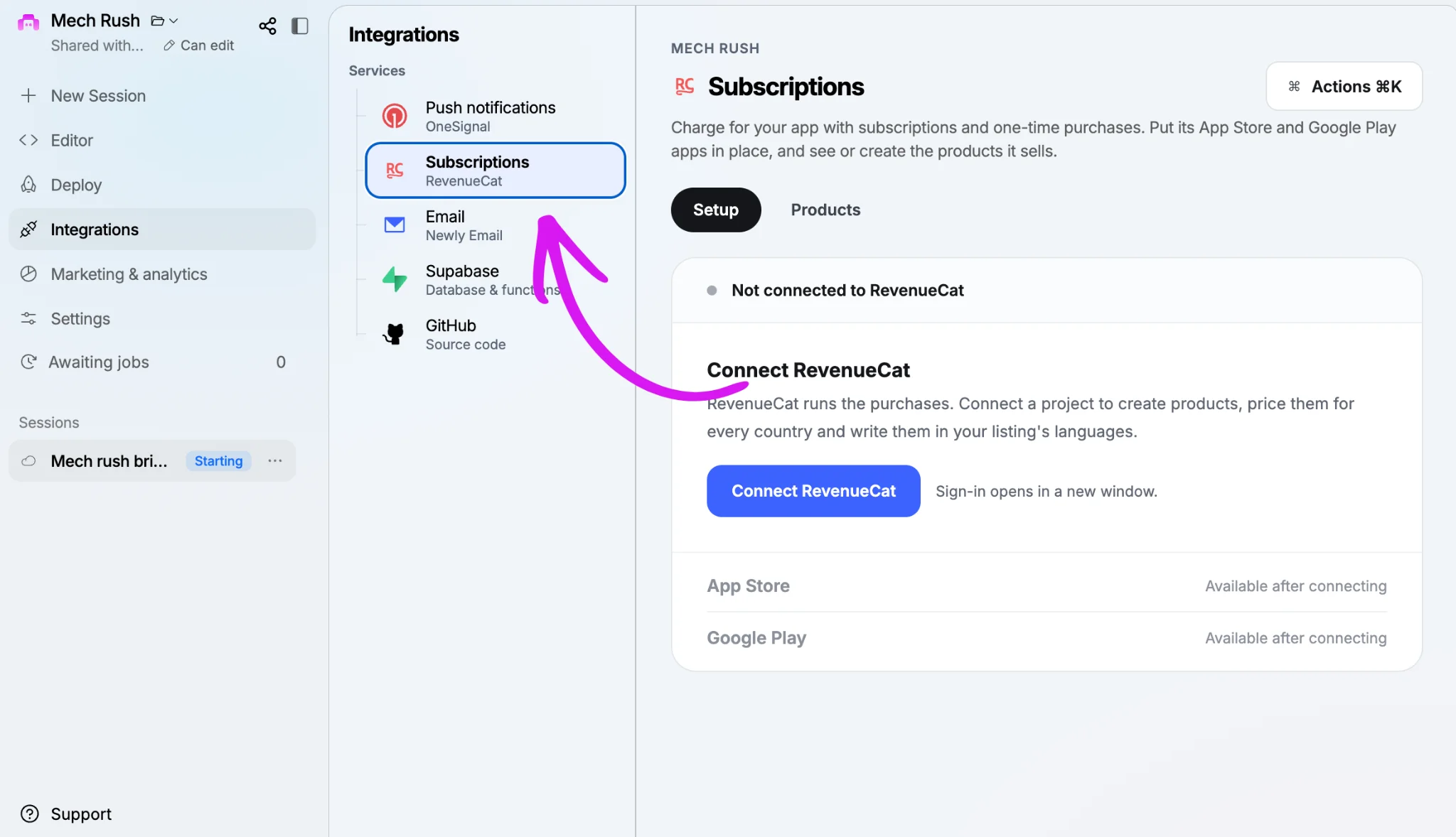
This is the step that turns your app from a project into a business.
RevenueCat handles in-app subscriptions and one-time purchases. You can connect it inside Newly, then ask Newly to add the paywall and purchase flow.
Here's how to set it up:
- Connect RevenueCat. Open Subscriptions in Newly and follow the connection steps. Sign in or create a RevenueCat account if you don’t have one.
- Create your product and decide what you're selling. Options:
- Monthly subscription: users pay every month. Best for apps with ongoing value (trackers, tools, content)
- Annual subscription: users pay once a year. A simple option for people who want to keep using your app.
- One-time purchase: users pay once for lifetime access. Good for utility apps with no ongoing content
- Free trial: users try the paid features before the subscription starts. Show how long the trial lasts and what they’ll pay after it ends.
- Set your price. Start with one clear paid offer and a price that matches what users get. You can adjust it as you learn from real users.
- Choose where the paywall triggers. This is the most important decision. Where in your app does the paywall appear? Options:
- On launch: users see the paywall before they can use the app.
- After a free action: users try something useful, like creating a habit or logging an entry, before the paywall appears.
- On a premium feature: the core app stays free, and users pay to unlock extra features.
For a first app, try letting users complete one useful action before showing the paywall. Give them a reason to want more.
- Design your paywall screen. Keep it simple. Show the price, the main benefits and one clear purchase button. Include Restore Purchases so returning customers can get their access back.
Tell Newly what users get when they pay, then check that buying or restoring a purchase unlocks it.
Set up your payouts. Finish the payment setup in your store account so you can receive payments. Apple and Google will walk you through what they need.
Step 5: Test Everything
Before you submit to the App Store, test your app as if you're a real user who has never seen it before.
Go through every flow:
- Can you complete the core action the app is designed for?
- Does the paywall appear where you set it?
- Does the free trial or purchase unlock the right features?
- Can a returning customer restore a purchase?
- Does your app keep saved data and paid access after closing and reopening it?
- Are there any screens that look broken on a smaller screen size?
- Does every button do what it's supposed to do?
Test purchases in a native build using Apple’s or Google’s test environment before launch. Follow RevenueCat’s testing guide to check the purchase flow without real charges.
If you can, get one other person to test it and watch them use it without explaining anything. Where they get confused is where you need to improve.
Step 6: Set Up Your Store Account
Your app is taking shape. To publish on the App Store or Google Play, you’ll need a developer account with that store. Apple and Google each have their own requirements and a bit of setup to work through.
For iPhone: Join the Apple Developer Program. It costs US$99 per year, with local pricing shown when you sign up.
For Android: Create a Google Play Console account. It costs US$25 as a one-time fee.
Follow the steps Apple or Google gives you. Once your account is ready, connect it in Newly’s Deploy tab. These fees are separate from your Newly plan.
Allow a few weeks for the full setup and store testing process. Some applications take longer. Work through what they ask for, and use that time to test and polish your app.
Step 7: Deploy
Where: Newly → Deploy
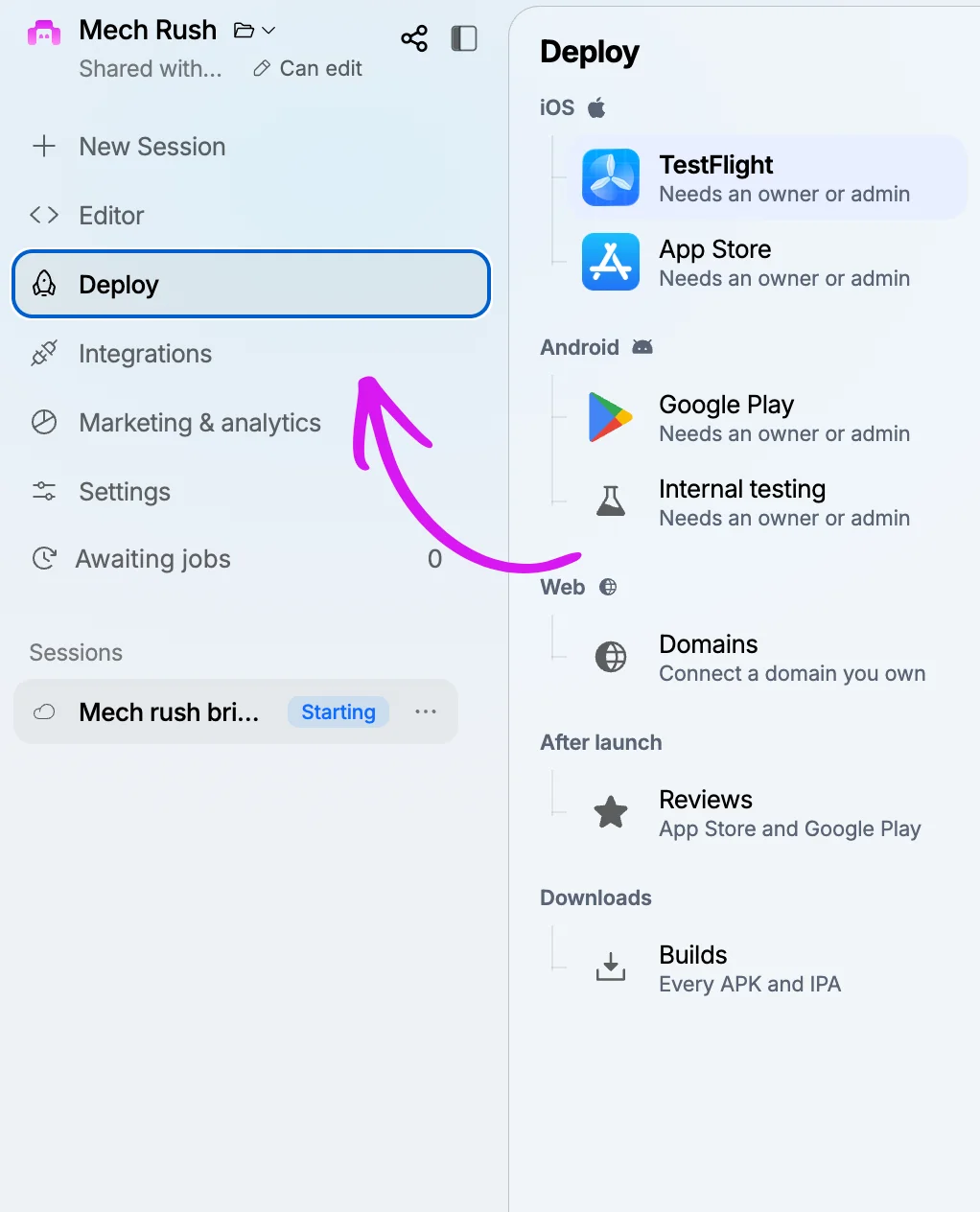
Before you deploy, make sure your developer account from Step 6 is approved and the store’s setup steps are complete. Then you’re ready to ship.
Choose your store. Start with the one your users use. You can add the other later.
- Get your listing ready. Add your app name, icon, screenshots, description and privacy-policy link. Ask Newly to check your app’s store readiness and work through the items it flags.
- For the App Store: Upload your app to TestFlight from Newly and test it on your iPhone. Then finish your listing and submit it for review in App Store Connect.
- For Google Play: Upload your app to internal testing from Newly. Follow Google’s testing and account setup steps, then send your release for review in Play Console.
Follow Newly’s publishing guide if you need help with the next step.
If a reviewer asks for changes, read the feedback, fix the specific issue in Newly, test again and resubmit.
Once your app is approved and released, people can find it, download it and pay for it.
After You Launch: What to Do in the First Week
Most builders launch and then wait. Don't wait.
Day 1: Share your App Store link everywhere. Your personal social media, any communities you're part of, friends and family. Your first downloads will almost always come from people who know you.
Day 2–3: Ask your first users for feedback. A simple DM or email, "I'd love to know what you think." Real feedback from real users is the most valuable thing you have at this stage.
Day 4–5: Check your RevenueCat dashboard for trials and paid subscriptions. Use your app analytics to see where people stop using the app.
Day 6–7: Make your first update based on what you've learned. Ship it. The apps that grow are the ones that keep improving.
Open Newly, describe your idea, and build your first screen. Keep this guide beside you as you go.
Build your first app →