Free designer & developer tool

Pixels to Inches Converter
built for mobile app makers

Convert pixels to inches, inches to pixels, and switch DPI / PPI in real time. Tuned for iPhone, iPad, and Android pixel densities so your React Native and Expo screens look right on every device.

Pixel ↔ Inch Converter

Live conversion using your chosen DPI / PPI value

px
in

Formula: inches = pixels ÷ DPI · pixels = inches × DPI

Live two-way conversionDPI presets for web, print & mobileWorks fully offline in your browser

Pixels → Inches

Type a value in the Pixels field. The Inches field updates instantly using your selected DPI.

Inches → Pixels

Type into Inches and the Pixels field updates. Perfect for converting print sizes to digital assets.

Adjust DPI / PPI

Pick a preset (96 web, 326 iPhone, 264 iPad…) or type any value. The other fields recalculate live.

Why pixels to inches matters
when you ship a mobile app

A 44px button is huge on a desktop monitor and almost invisible on a 460 PPI iPhone. Translating between pixels and physical inches is how good mobile designers make sure interfaces feel right in real-world hands.

Tap targets that actually fit a thumb

Apple recommends a minimum tap target of 44pt and Google recommends 48dp — both around 0.4 inches. Convert your pixel design into inches to confirm buttons aren’t too small to comfortably tap.

Consistent sizing across iPhone, iPad & Android

Different devices have wildly different PPI values (326 → 510). An icon that looks balanced at 326 PPI might feel cramped at 460 PPI. Use the converter to keep physical sizes consistent.

Logical pixels in React Native & Expo

Newly apps are built in React Native, which uses density-independent logical pixels. The OS multiplies your styles by the device’s pixel ratio. Knowing the real inch size keeps your layout predictable.

Print & marketing assets

Need to send your app icon to a print shop or generate a poster from a screenshot? Convert pixels at 300 DPI to figure out the maximum clean print size before quality breaks.

Common pixel to inch conversions

Quick reference for the four most common DPI values: 72 (legacy print), 96 (CSS / web), 150 (mid quality print) and 300 (high quality print). For exact mobile values, use the converter above.

Pixels72 DPI96 DPI150 DPI300 DPI
50 px0.69 in0.52 in0.33 in0.17 in
100 px1.39 in1.04 in0.67 in0.33 in
200 px2.78 in2.08 in1.33 in0.67 in
300 px4.17 in3.13 in2.00 in1.00 in
400 px5.56 in4.17 in2.67 in1.33 in
500 px6.94 in5.21 in3.33 in1.67 in
600 px8.33 in6.25 in4.00 in2.00 in
800 px11.11 in8.33 in5.33 in2.67 in
1,000 px13.89 in10.42 in6.67 in3.33 in
1,280 px17.78 in13.33 in8.53 in4.27 in
1,920 px26.67 in20.00 in12.80 in6.40 in
2,560 px35.56 in26.67 in17.07 in8.53 in

iPhone screen resolutions & PPI

Updated through the iPhone 17 lineup. Use these PPI values in the converter to get exact inch measurements for your designs.

iPhone reference
ModelResolution (px)DiagonalPPIScale
iPhone 17 Pro Max2868 × 13206.9"460@3x
iPhone 17 Pro2622 × 12066.3"460@3x
iPhone 172622 × 12066.3"460@3x
iPhone 17 Air2736 × 12606.6"460@3x
iPhone 16 Pro Max2868 × 13206.9"460@3x
iPhone 16 Pro2622 × 12066.3"460@3x
iPhone 16 Plus2796 × 12906.7"460@3x
iPhone 162556 × 11796.1"460@3x
iPhone 15 Pro Max2796 × 12906.7"460@3x
iPhone 15 Pro2556 × 11796.1"460@3x
iPhone 152556 × 11796.1"460@3x
iPhone 14 Pro Max2796 × 12906.7"460@3x
iPhone 14 Pro2556 × 11796.1"460@3x
iPhone 14 / 13 / 122532 × 11706.1"460@3x
iPhone 13 mini / 12 mini2340 × 10805.4"476@3x
iPhone 11 / XR1792 × 8286.1"326@2x
iPhone SE (2nd / 3rd gen)1334 × 7504.7"326@2x

Popular Android screen resolutions

Android density buckets (mdpi, hdpi, xhdpi, xxhdpi, xxxhdpi) describe pixel density groups. Use the exact PPI for accurate physical sizing.

Android reference
ModelResolution (px)DiagonalPPIDensity bucket
Pixel 9 Pro XL2992 × 13446.8"486xxxhdpi
Pixel 9 Pro2856 × 12806.3"495xxxhdpi
Pixel 92424 × 10806.3"422xxhdpi
Samsung Galaxy S25 Ultra3120 × 14406.9"501xxxhdpi
Samsung Galaxy S25+3120 × 14406.7"513xxxhdpi
Samsung Galaxy S252340 × 10806.2"416xxhdpi
Samsung Galaxy A542340 × 10806.4"403xxhdpi
OnePlus 123168 × 14406.82"510xxxhdpi

What is a pixel?

3D illustration of measurement tools — a compass, ruler, and protractor — representing pixel measurement

A pixel (short for “picture element”) is the smallest controllable unit of a digital image or display. Each pixel can show a specific color and brightness, and millions of them arranged in a grid form the images you see on every screen.

Most modern displays mix red, green, and blue (RGB) sub-pixels in different intensities to produce millions of different colors. The grid coordinates of each pixel determine where it lives within the image.
How many pixels are there in an inch?

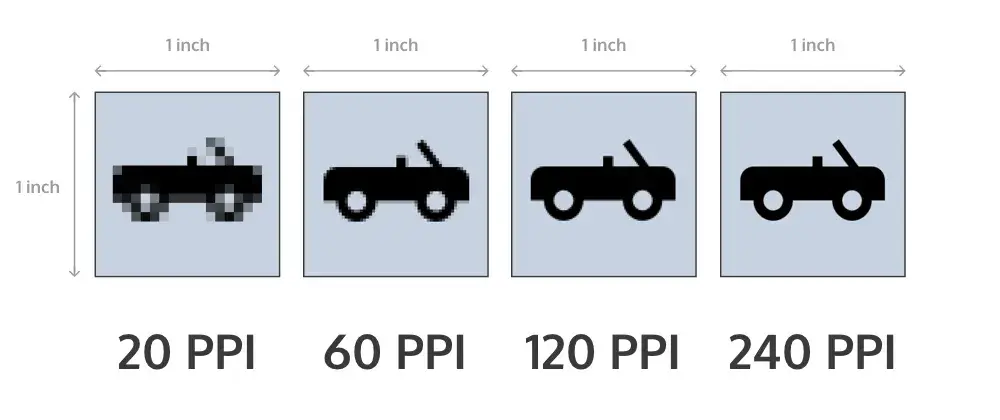
The number of pixels in one inch depends on the display's pixel density, measured in pixels per inch (PPI). The higher the PPI, the sharper the image looks because more pixels are packed into each physical inch.

Visual comparison of low, medium, high, and extra-high PPI screens showing how the same image appears progressively sharper as pixel density increases
Same image at different pixel densities. Image credit: Prototypr.
  • 72 / 96 PPI — Legacy print and the CSS web standard
  • ~140 PPI — Standard 1080p laptops and 24" desktop monitors
  • ~163–220 PPI — 4K and 5K desktop monitors
  • 264 PPI — iPad Retina baseline
  • 326–460 PPI — iPhone Retina & Super Retina XDR displays
  • 400–560 PPI — High-end Android phones (Pixel 9 Pro, Galaxy S25 Ultra, OnePlus 12)

How to calculate pixels per inch (PPI)

The formula for PPI is:

PPI = √(horizontal_px² + vertical_px²) ÷ diagonal_inches

For a 15.6" laptop at 1920 × 1080:
√(1920² + 1080²) ≈ 2202 px, and 2202 ÷ 15.6 ≈ 141 PPI.

Once you know a device's PPI you can plug it into the converter at the top of this page to translate between any pixel and inch value.

DPI vs PPI vs density-independent pixels (DP / pt)

These terms get used interchangeably online but they describe different things:

  • PPI — Pixels per inch on a digital screen
  • DPI — Dots per inch on a printer (Android also uses DPI to describe screen density)
  • DP / DIP — Density-independent pixel on Android: 1 DP = 1 pixel at 160 DPI
  • PT — iOS point: 1 PT = 1 pixel on a non-Retina display, 2 pixels on @2x, 3 pixels on @3x
  • CSS px — Web: 1 CSS pixel = 1/96 of an inch by definition

React Native — which Newly generates — uses density-independent logical pixels that map to either PT (iOS) or DP (Android) under the hood. Use the converter to double-check the physical size of a layout you design in Figma.

Tips for accurate conversions

  • Know your DPI. 72 for legacy print, 96 for web/CSS, 300 for high-quality print, ~326 for iPhone, ~264 for iPad.
  • Stay consistent. Use the same DPI value when converting back and forth so the numbers stay in sync.
  • Design at 1×, export at 2× and 3×. This is the quickest way to cover most modern phones without doing math by hand.
  • Verify in real life. When in doubt, build with Newly and preview the screen on a real device with Expo Go.

Stop converting pixels.
Start shipping the app.

Newly turns a one-line description into a complete native iOS & Android app with React Native and Expo. The AI handles the pixel math, responsive layout, and device scaling for you.