

How to make an app icon,
without a designer.
Want an app icon? You do not need Photoshop, a designer, or a stack of export sizes. This is how to make an app icon inside Newly: create any app, open Settings, describe the icon you want, and generate it. It is set on your app in a couple of clicks.
The short version
An icon in a couple of clicks.
The short version of how to make an app icon in Newly: open any project, go to App Settings, find the App Logo section, and click Regenerate with AI. Describe the icon, pick a style, and Newly generates it and sets it as your app icon. Newly even creates a first icon for you while it builds the app, so you start with one and only change it if you want to. The full walkthrough is below, with a screenshot at every step.
The walkthrough
Five steps to your app icon.
Follow along from the Newly homepage to a finished icon on your app. Steps one and two happen on their own as you start a project, so the real work is steps three and four.
- 1
Create any app
Open Newly and describe an app in the prompt box, the same way you would brief a teammate. In the screenshot the prompt is simply “Build me an app with a big button saying Click Me.” You do not need a polished or finished app to get an icon, any project works, so this step is really just “have a project open.” If you already have an app in Newly, skip straight to step three.
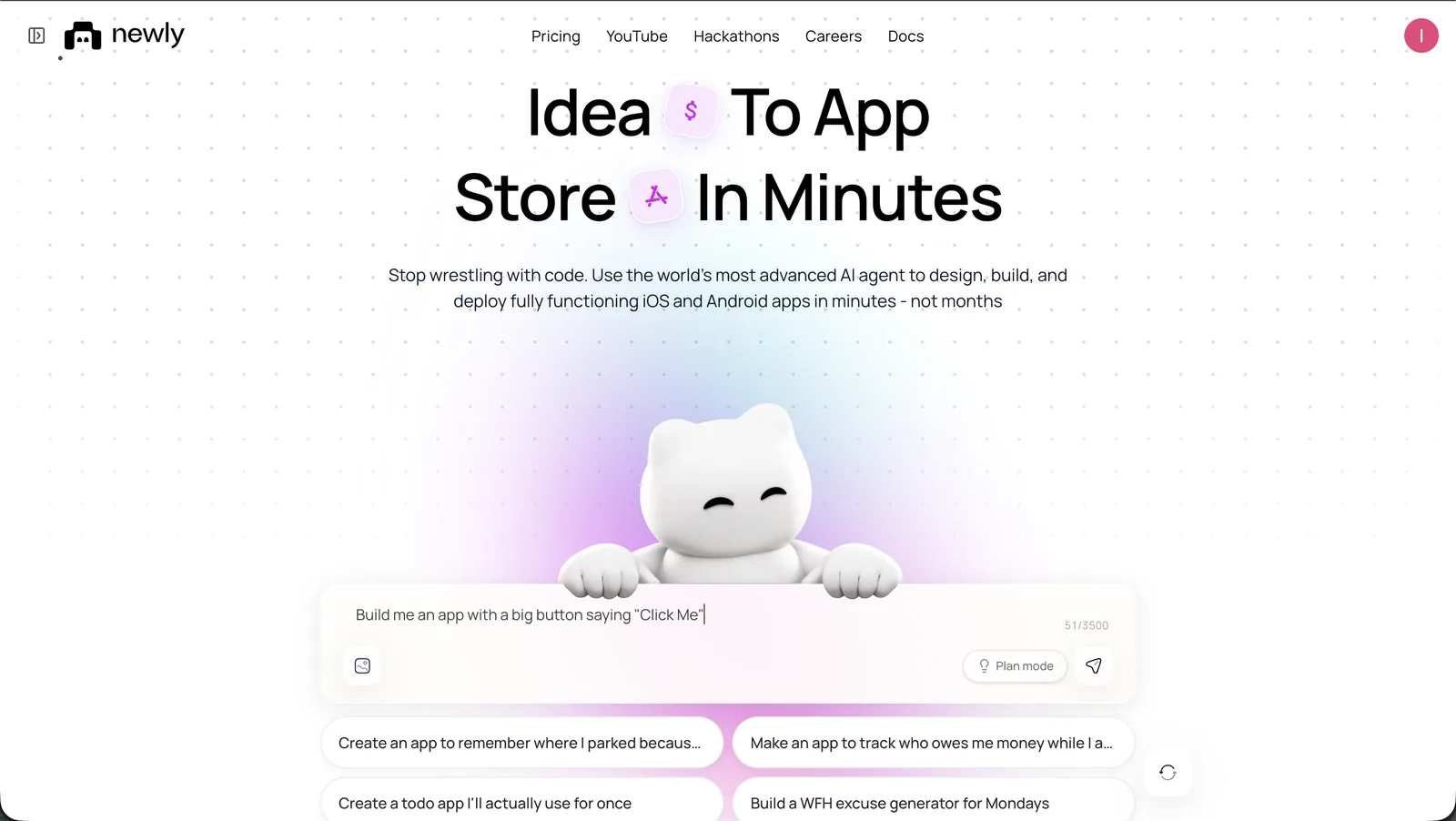
Start any project from a prompt on the Newly homepage. You do not need a finished app to get an icon. - 2
Newly makes a first icon for you
While Newly sets up your project, watch the progress list. One of the lines is “Creating your app icon.” Every app you start in Newly already comes with an AI-generated icon before you touch a single setting. So the honest answer to how to make an app icon in Newly is that the first one is made for you automatically. The rest of this guide is about replacing that starter icon with exactly the one you want.
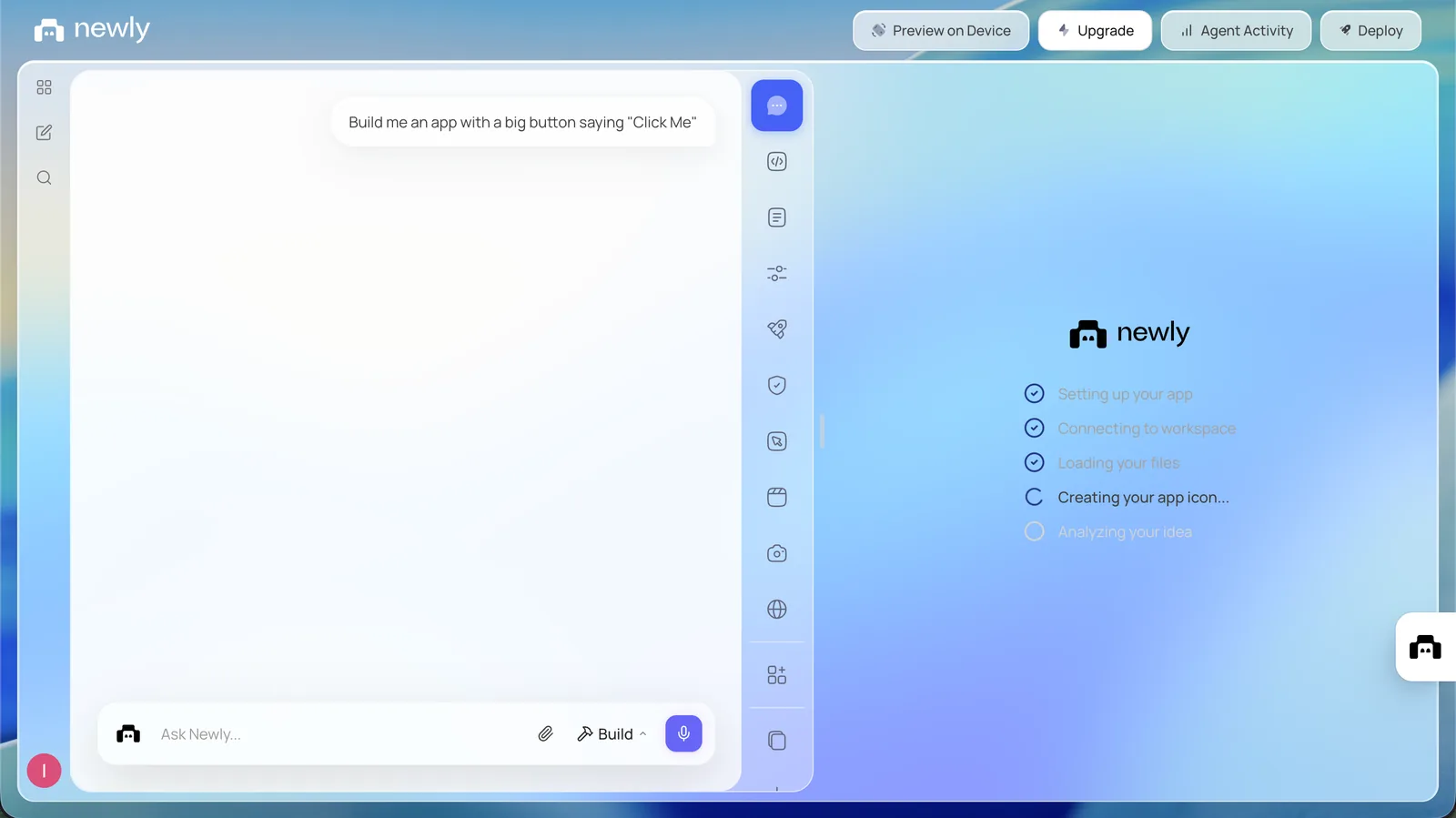
As Newly sets up the project, the progress list shows Creating your app icon. Every app starts with one. - 3
Open App Settings and find App Logo
Open App Settings from the toolbar on the left (the sliders icon). The panel has an App Logo section, described as “Displayed on the home screen and throughout your app. Only PNG accepted.” Here you will see your current icon plus four controls: Upload PNG to use your own art, Regenerate with AI to generate a new one, Previous drafts to revisit earlier icons, and a small counter showing how many regenerations you have left. This one panel is where the whole icon lives.
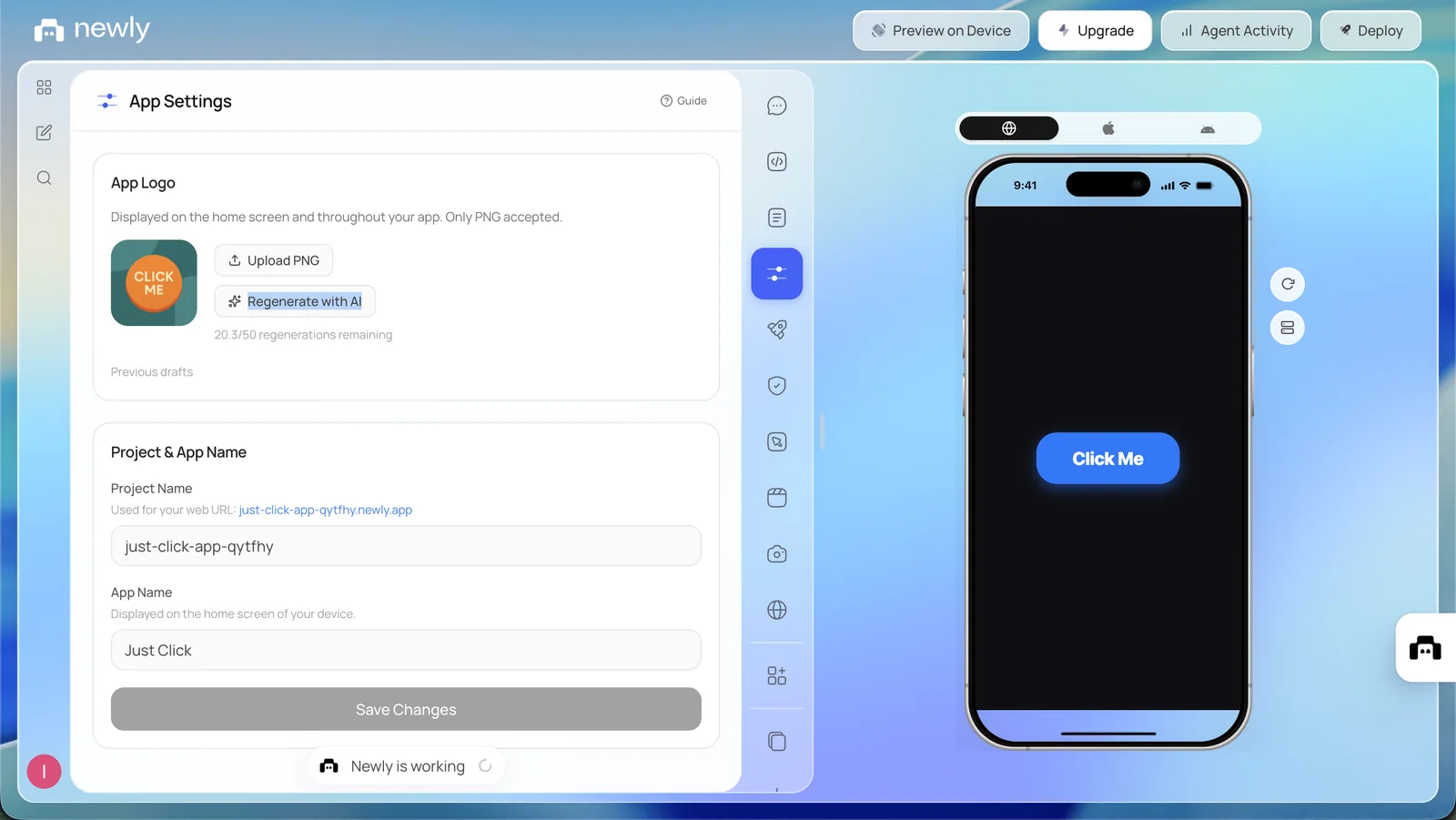
App Settings, App Logo: your current icon, Upload PNG, Regenerate with AI, Previous drafts, and the regenerations you have left. - 4
Describe the icon and generate it
Click Regenerate with AI and a prompt field opens. Type the icon you want in plain words, like the example in the screenshot, “Make me an icon with a button in a shape of a zebra.” Choose a style from the dropdown (the screenshot uses Pixel), then click Generate. Newly draws the icon and updates both the thumbnail and the live phone preview, so you see it on a real home screen right away. If the first result is not quite right, change the words or the style and generate again, or open Previous drafts to step back to one you liked. Each generation uses one of your monthly regenerations, shown by the counter.
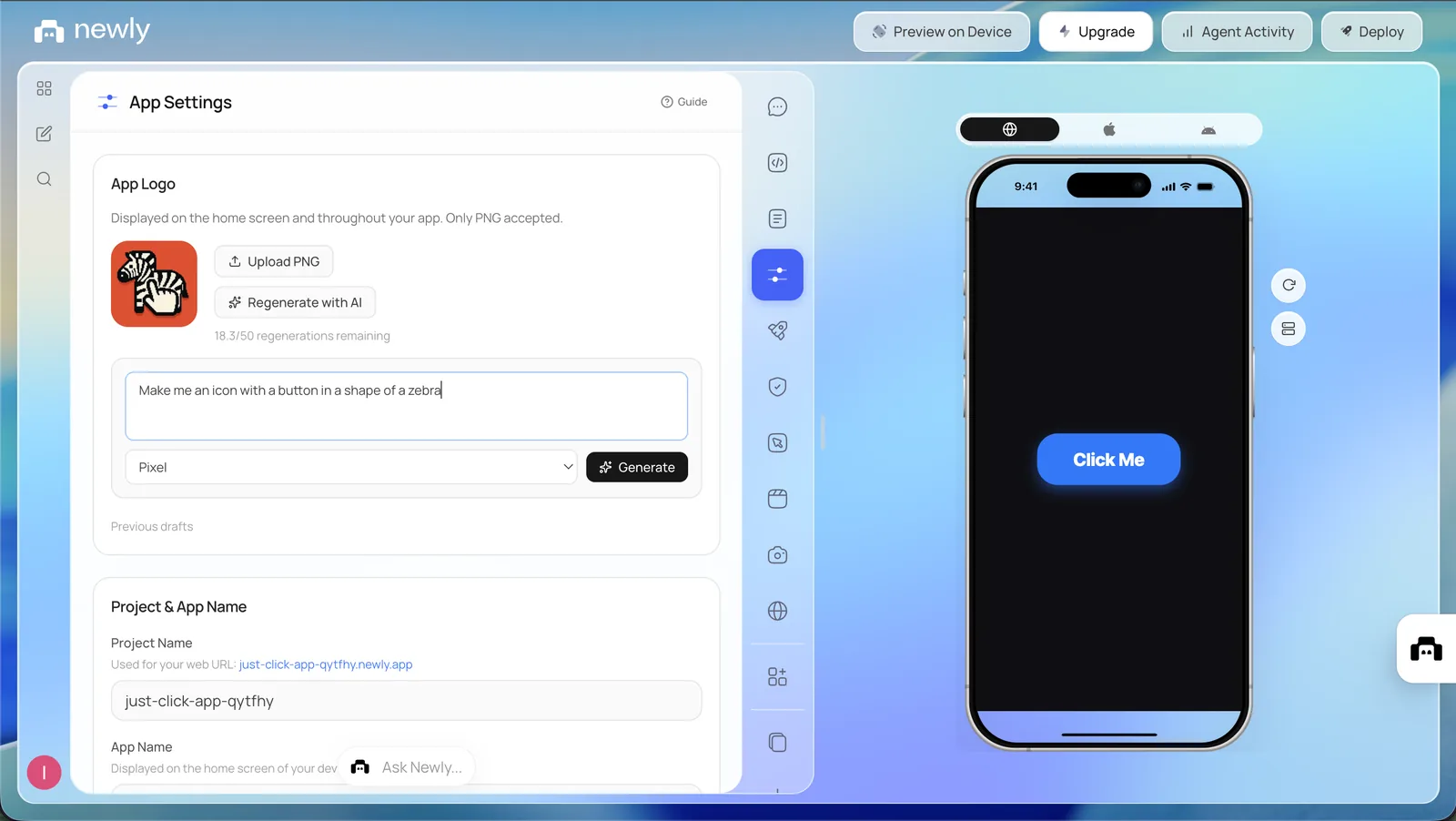
Type what you want, pick a style, and click Generate. The icon and the live phone preview update together. - 5
Download it, or just ship it
Once you have an icon you like, you are basically done. It is already set as your app's logo, which is why it shows on the phone preview. If you want the file itself, hover the icon and click to download the PNG. Otherwise there is nothing else to do: the icon is saved to your project and ships with the app to the App Store and Google Play when you deploy. Prefer to use your own artwork? Upload PNG swaps in your file at any time.
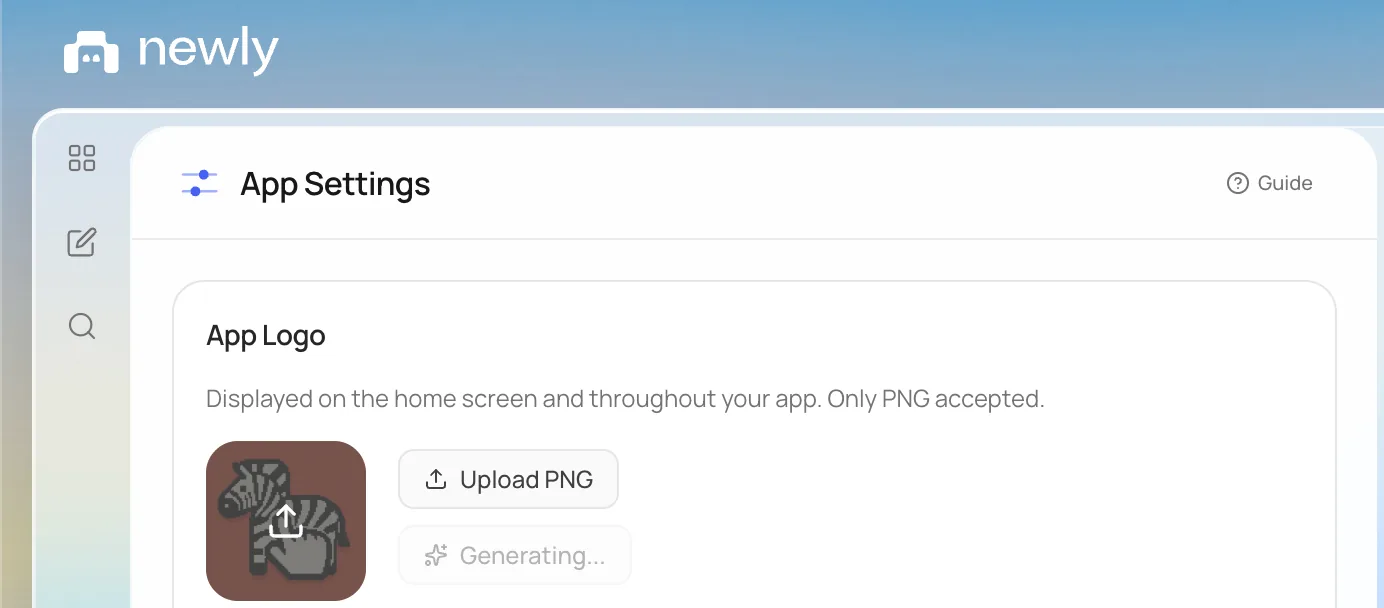
Hover the icon to download the PNG, or leave it. It travels with your app to the App Store and Google Play.
App icon requirements
Sizes and format, handled for you.
App icons have rules, but Newly takes care of them. You do not have to think about pixel sizes or export settings, the generated icon comes out correct.
- Format is PNG (the App Logo panel only accepts PNG)
- iOS uses a 1024 by 1024 icon
- Android uses a 512 by 512 icon
- Newly generates the icon at the right size, so there is nothing to resize
Why in Newly
No separate tool, no exporting.
You could open a design app, learn it, and export an icon at the right sizes. The reason to make your app icon in Newly is that all of that already lives inside the project you are building. You describe the icon in words, try a few styles, keep the drafts you like, and the result is wired straight into your app, with no exporting, resizing, or uploading between tools. The simplest version of how to make an app icon is to change nothing at all, since Newly created a first one while it built your app.
- Describe the icon you want in plain words
- Pick a style, then regenerate until it is right
- Keep earlier versions with Previous drafts
- Upload your own PNG whenever you prefer
- Sized correctly and shipped with your app automatically
The icon generator is part of every Newly project, which starts at $25 a month, alongside building, the bundled backend, and publishing to the stores.
FAQ
How to make an app icon, answered.
Create or open any app in Newly, open App Settings from the left toolbar, and find the App Logo section. Click Regenerate with AI, describe the icon you want, pick a style, and click Generate. Newly sets the result as your app's logo, and it ships with the app. Newly also creates a first icon automatically while it builds your app, so you always start with one.
Want an app icon? Make one in Newly.
Start an app, open App Settings, and generate an icon in a couple of clicks. It is sized correctly and ships with your app to the App Store and Google Play.