

How to · Android
How to convert ZIP to APK, and why renaming never works.


Founder, Newly
Search for how to convert ZIP to APK and most of page one tells you to change the extension. It has never worked. The reason is worth two minutes, because the same reason tells you which of four real routes you actually need, and if what you have is a folder of screens and an idea rather than an Android project, Newly’s APK builder is the shortest of the four.
Key Takeaways
- Renaming never works. A .zip and an .apk are both ZIP archives, but Android checks the contents, not the extension.
- Six entries are missing. An installable APK needs AndroidManifest.xml, classes.dex, resources.arsc, res/, assets/ and a signed META-INF, a project zip supplies at most one.
- If the zip is an Android project, Gradle is free.
./gradlew assembleDebugproduces a signed debug APK with nothing else installed. - Newly cannot open your zip. It builds from a description, not from files, a half-finished codebase means rebuilding, not converting, and there is no free tier.
Both files are ZIP archives. That is the whole trap.
The rename advice spreads because it half-works. Change .zip to .apk and the icon changes. Copy it to a phone and the file manager offers to install it. Everything up to the last second behaves as though you did something real.
Then the package parser opens the archive and starts looking for specific entries. Android’s own documentation lists what belongs in an APK: a compiled AndroidManifest.xml, classes.dex, resources.arsc, res/, assets/, lib/ and META-INF/. Your zip has, at best, one of those. Below is the cross-section of both files side by side. Tap any entry in the lower band to see what produces it and what breaks without it.
- What it is
- The signature block: CERT.SF, CERT.RSA and MANIFEST.MF. It is proof that the archive has not been altered since whoever holds the key built it.
- Where it comes from
- Produced by signing the finished APK with a certificate. Nothing else in the build can create it, and no converter can fake it for you.
- What happens without it
- Android refuses the install. The documentation is unambiguous: all APKs must be signed with a certificate before they are installed or updated.
Two of the six entries have anything above them. One is copied straight through. The other four are produced by a toolchain that has to read your code, compile it, index your resources, and then sign the result. That is not a conversion. It is a build, and there is no file-level trick that stands in for it. If you want the format itself pulled apart properly, the central directory, the signing block, why zipalign exists, that is a different article on what an APK file actually is. Here you only need the shape of the gap.
Open the zip before you do anything else
Almost every wasted hour on this problem starts with someone guessing what their archive contains. Do not guess. One command lists the whole thing without extracting a byte, and the first twenty lines usually settle it.
# List what is actually inside, without extracting anything
unzip -l my-project.zip | head -40

# Check whether it already contains a built APK
unzip -l my-project.zip | grep -i "\.apk$"
Four things you might see, and what each one means:
- You see a file ending in .apk
- Best case. Nothing needs converting, extract it and install it. Check it is signed before you blame the phone.
- You see gradlew, settings.gradle and an app/ folder
- An Android project. Gradle turns it into an APK in one command, and that is genuinely the best route on this page.
- You see package.json, App.tsx or a src/ folder
- A JavaScript project. It has to be compiled and bundled into a native shell, a build, not a conversion.
- You see index.html, style.css and a few images
- A website. There is no Android app in there at all. What you can get is a wrapper, with the trade-offs below.
Those four cases lead to four different tools, and picking the wrong one is how people end up on a converter site at 1am. If you want the longer version of that decision, we wrote up which APK converter fits what you have.
The four routes, compared without flattery
One of these is free, official, and better than anything else on this page for the case it fits.
| Route | What your zip must contain | What comes out | Installs? | Google Play |
|---|---|---|---|---|
| Rename the extension | Anything at all | A zip with a misleading name | Never | No |
| Online zip-to-apk converter | Usually a website folder | A WebView wrapper around your pages | Yes, but | Risky under minimum functionality |
| Gradle or Android Studio | A real Android project with gradlew | A debug or release APK, and an AAB | Yes | Yes, as an AAB |
| Rebuild from a description | Nothing but a description of the app | A signed APK and a signed AAB | Yes | Yes, as an AAB |
If row three describes your zip, take row three. Gradle is free, it is the toolchain the APK format was designed around, and nothing else here beats it for an existing Android project. The rest of this page is for everyone whose archive does not qualify.
Building it for real
Three of the four routes are worth walking through. The rename is not one of them.
If the zip is an Android project: one command
Extract it, open a terminal at the folder holding gradlew, and run the assemble task. The Android build documentation is explicit that the debug variant is signed with the debug key and zipaligned for you, which is why a debug APK installs immediately and a release APK usually does not.
# from the project root, alongside gradlew
./gradlew assembleDebug

# output, in a standard single-module project:
# app/build/outputs/apk/debug/app-debug.apk
- 1Extract the zip somewhere with a short path, deep nested paths still break Gradle on Windows.
- 2Confirm gradlew, settings.gradle and an app/ module are all at the same level. If gradlew is one folder deeper, run it from there.
- 3Run ./gradlew assembleDebug and wait out the first-run download.
- 4Copy the .apk to the phone, allow installs from your file manager, and tap it.
- 5For anything you intend to release, configure a keystore and run ./gradlew bundleRelease instead, Play wants the bundle, not the APK.
If the zip is a website folder: know what a wrapper gives you
This is the case the converter sites are quietly built for. They take your index.html and produce an APK containing a WebView that loads it. That is a legitimate technique and it installs. It is also, in the eyes of Play review, a website in a box: no native navigation, no offline behaviour you did not build yourself, and a long record of rejections under the minimum functionality policy. For an internal tool nobody will ever download from a store, a wrapper is fine and takes ten minutes. For anything public, it is a trap you will pay for later.
If the zip is screens and an idea: describe it instead
The awkward case is the common one: a folder of mockups, some notes, maybe a half-finished web prototype. There is nothing in it to compile. What you have is a specification wearing a zip file as a costume, and the fastest route to an installable APK is to hand that specification to something that builds native apps and let it do the compile step you were trying to skip.
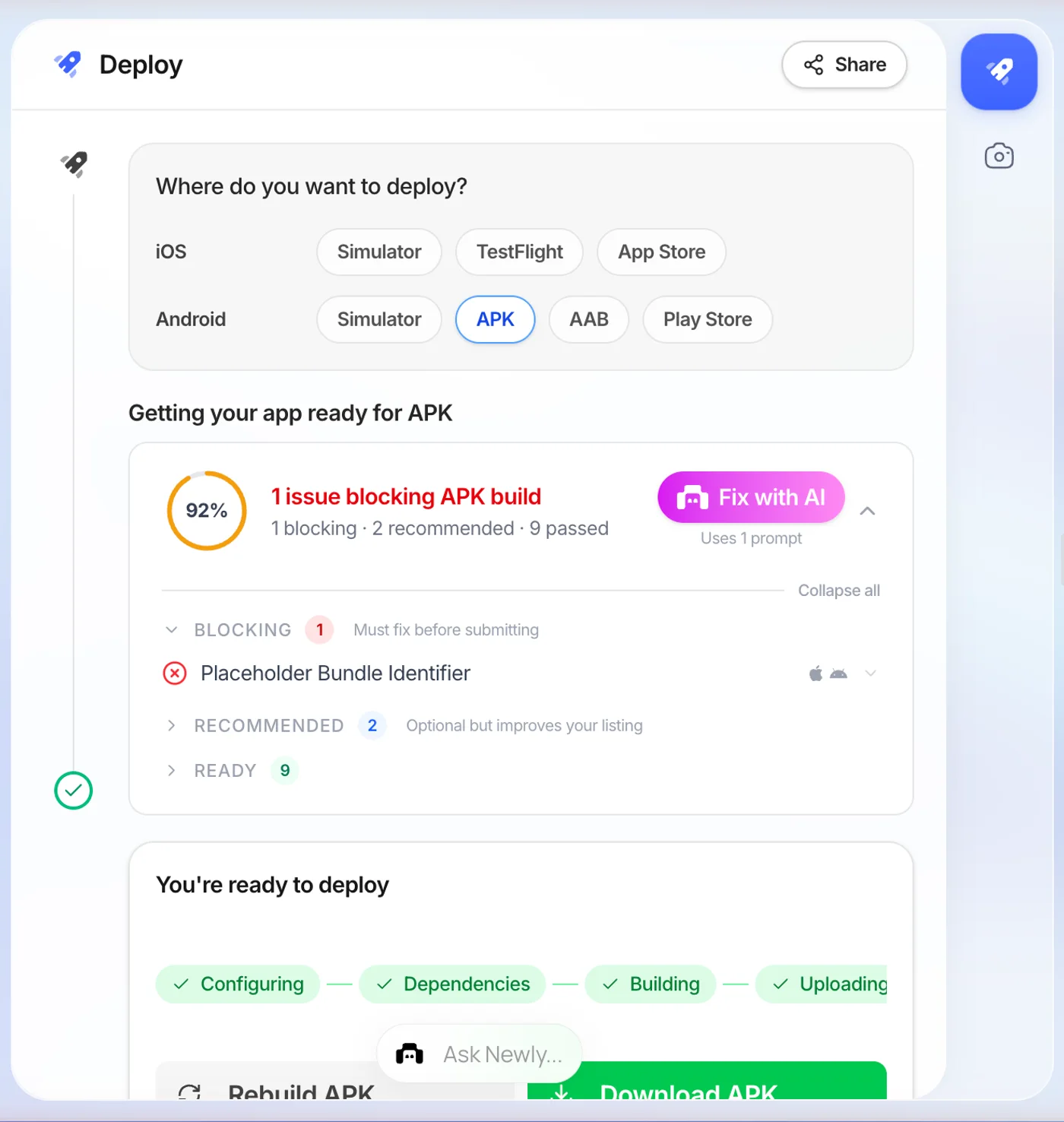
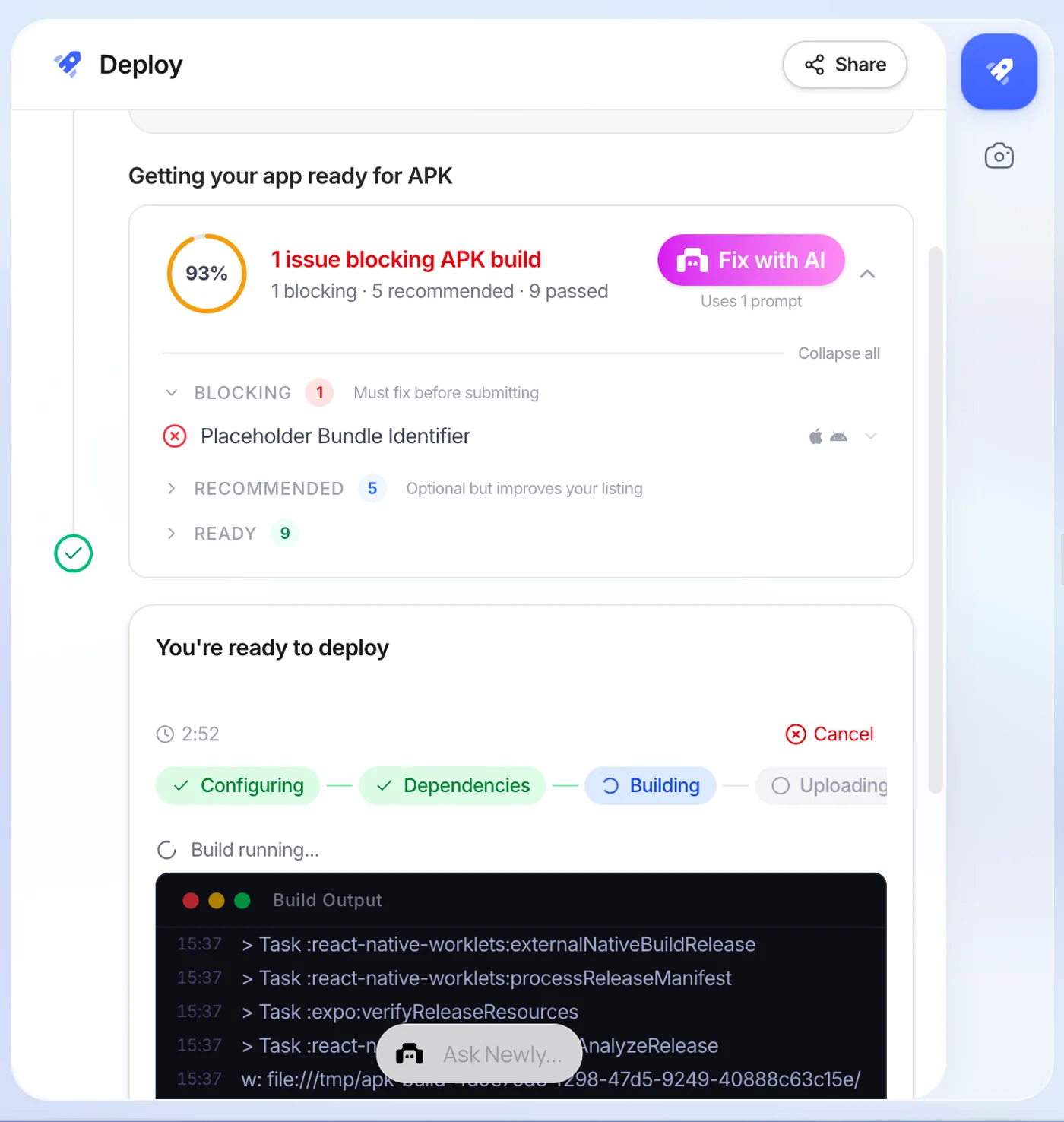
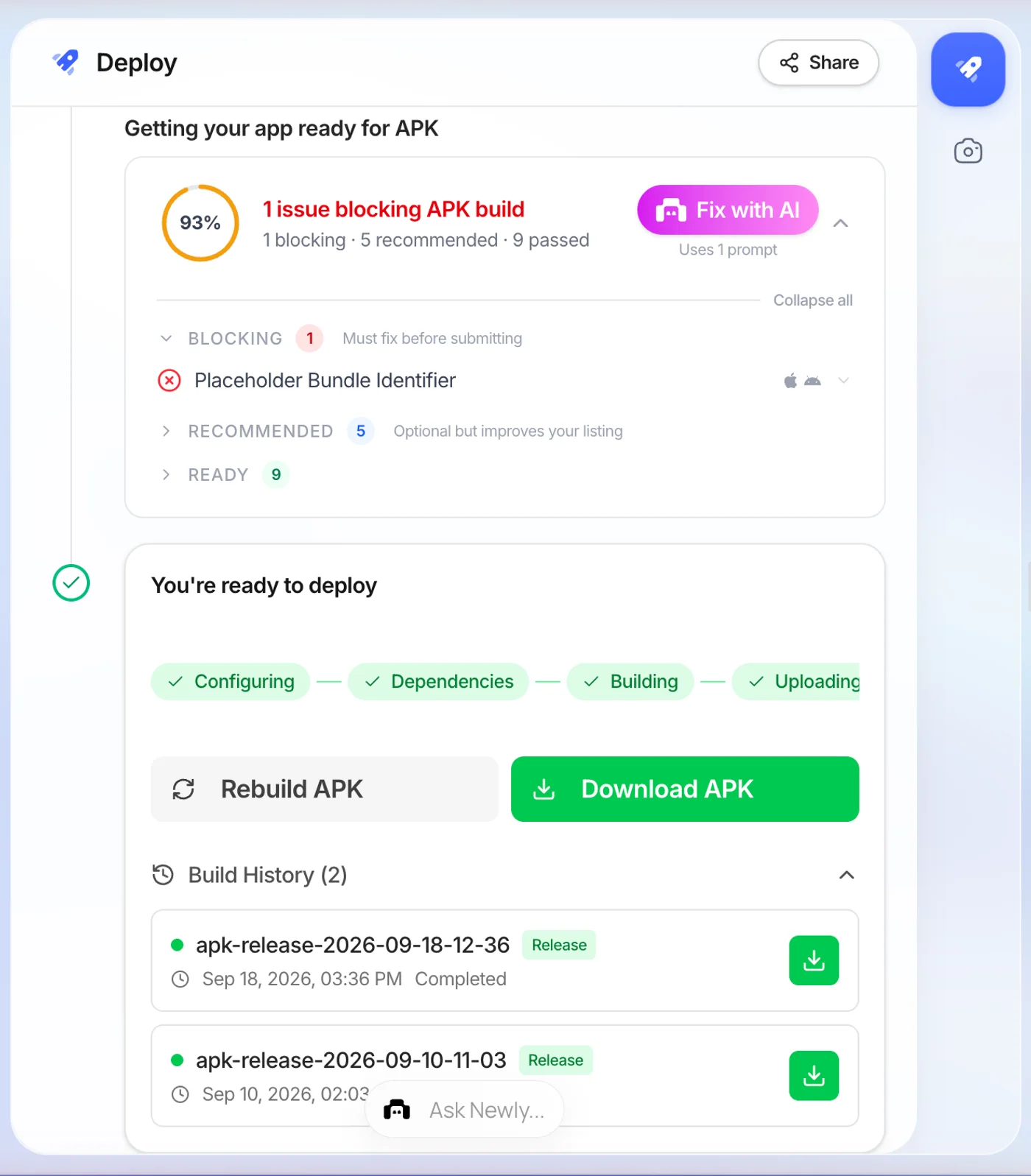
Newly does this in the browser. You describe the app, it generates a React Native project, and Launch → Deploy offers an APK , you enter a bundle identifier and the build takes five to ten minutes, with no Android Studio installed anywhere. The output is a signed APK you can send straight to a tester.
What this route will not do for you
Newly cannot open your zip. There is no import step, no upload-a-project button, no read-my-repo option, it starts from a description, not from your files. If you have a half-finished codebase you are attached to, you are rebuilding, not converting, and every hour already in that folder stays in that folder. There is also no free tier: $25 a month before you see a single build. If your zip already holds an Android project, the Gradle route above costs nothing and is strictly better.
Worth noting for anyone allergic to lock-in: the export is a zip of the full React Native project, or a GitHub repository if you connect one. You end up back where you started, holding an archive of source code, except this one has a gradlew in it, which is the entire difference.
You built one and it still will not install
The most common reason is the last entry in the diagram above. Android’s signing documentation puts it in one sentence: all APKs must be digitally signed with a certificate before they are installed on a device or updated. An unsigned archive is refused, and the on-screen error will not tell you that. Check it directly.
# apksigner ships with the Android SDK build-tools
apksigner verify --print-certs app-release.apk
- The archive is unsigned
- A release build does not sign itself. Debug builds do, which is why the debug APK installed and the release one did not.
- minSdkVersion is above the device
- An app built for API 26 and up simply will not install on Android 7. The error is generic; the cause is not.
- The ABI does not match
- A split build for arm64-v8a fails on an x86 emulator. Build the universal APK if you are not sure what the tester has.
- Something is already installed with a different key
- Android will not let a differently-signed build replace an existing app. Uninstall the old one first.
Generating a keystore, choosing between the signature schemes, and keeping the key somewhere you will still have it in three years is its own job. We covered it separately in signing the APK before it will install. The one thing to internalise now: lose the key and you cannot ever update the app under the same listing.
An APK is not what Google Play wants any more
Worth knowing before you spend an evening on this. Google’s own guidance is that from August 2021, new apps are required to publish with the Android App Bundle , a .aab that Play uses to generate an optimised APK per device. You cannot install an .aab on a phone, so it is useless for testing, and Play will not accept the APK for a new listing. Build both. The APK goes to your testers; the bundle goes to the Play Console.
Before you call it converted
- unzip -l on the file lists AndroidManifest.xml at the archive root, not inside a subfolder
- There is at least one classes.dex, no DEX file means no code, however large the archive is
- apksigner verify --print-certs prints a certificate instead of an error
- The device is on an Android version at or above the app’s minSdkVersion
- If it is going to Google Play, you built an .aab as well, because Play will not take the APK
Questions people actually ask
No. Both formats are ZIP archives, so the rename works at the filesystem level and the file even opens in an archive tool, which is why the advice keeps circulating. Android does not look at the extension. It looks for a compiled AndroidManifest.xml, DEX bytecode in classes.dex, compiled resources in resources.arsc, and a signature block in META-INF. A project zip has none of those, so the package parser gives up before the install ever starts.
The missing step was always the build.
A zip cannot become an APK, but the app inside your head can. If the archive on your desktop is really a specification, skip the converter sites and go straight to a signed build you can install tonight.