

Android · Signing
How to sign an APK,
and never lose the key.

Founder, Newly
Sideloading fails at signing more often than it fails anywhere else, and the message you get is a shrug: App not installed. No reason, no error code, nothing to search. Underneath, Android is doing something narrow and strict, comparing a certificate, and once you know that, the whole subject collapses into about ten minutes of work you do once.
Here is how to sign an APK end to end: what the signature is actually for, the commands Android publishes for producing one, and the single mistake that cannot be undone afterwards. If you would rather not run any of it, you can build a signed APK in Newly instead and skip to the section on what that does and does not save you.
Key Takeaways
- Unsigned APKs do not install. Android refuses them outright, and the install error tells you nothing about why.
- The key is a one-way door. Lose it and you can never update that app under the same identity, you publish a new app with no reviews.
- Play App Signing protects the upload key only. It lets Google reset an upload key; it cannot recover an app signing key you held yourself and lost.
- Newly signs the APK for you. The keystore wizard, and the two files you must keep, appear only on the AAB path.
The mechanism
A signature is an identity claim, not a seal of approval.
Nobody vets your certificate. It is self-signed, it costs nothing, and Android does not care who you say you are. What it does care about is consistency. The first time your app installs, the system records the certificate that signed it against the package name. From then on, the only build allowed to replace it is one carrying the same certificate.
That is the entire trust model, and it explains both failures people hit. An unsigned APK never gets past the parser, AOSP returns INSTALL_PARSE_FAILED_NO_CERTIFICATES, documented as the code passed back when “the parser did not find any certificates in the .apk”. A correctly signed APK with the wrong certificate gets further and then dies on INSTALL_FAILED_UPDATE_INCOMPATIBLE, which AOSP defines as what you get when a previously installed package of the same name has a different signature. Both surface on a phone as the same four words.
Four schemes, and which Android needs which
You will see v1 through v4 in build output and in every Stack Overflow answer from the last decade. They are not alternatives to pick between. They stack, and AOSP’s own advice is blunt: for maximum compatibility, sign with all of them, v1 first, then v2, then v3.
| Scheme | Since | What it protects | When you need it |
|---|---|---|---|
| v1 (JAR) | Inherited from JAR signing | Each file inside the archive, one at a time. The ZIP metadata around them is not protected. | Only if you still support Android 6.0 and below. Slow to verify, and weakest of the four. |
| v2 | Android 7.0 | The APK as a single blob, including the ZIP structure. Any byte changes and verification fails. | In practice, always. Android 11 will not install or update an APK signed only with v1. |
| v3 | Android 9 | Everything v2 covers, plus a signing certificate lineage that records a key rotation. | If you ever want the option to rotate the signing key without republishing the app. |
| v3.1 | Android 13 | Rotation that targets a specific SDK level, so new devices see the rotated key and old ones do not. | Only when you actually rotate. It exists because v3 rotation broke on older releases. |
| v4 | Android 11 | A hash tree stored beside the APK in a separate file, name.apk.idsig, rather than inside it. | Streamed and incremental installs, such as adb install --incremental. Not a store requirement. |
Version numbers and behaviour from the AOSP application signing specifications and Android’s behaviour-change notes for Android 11, read September 2026. In practice you will not choose by hand: apksigner decides which schemes to apply from your --min-sdk-version and --max-sdk-version, which default to what your manifest declares.
Read this part twice
Everything here is reversible except one step.
Wrong bundle ID? Rebuild. Wrong version code? Bump it. Forgot to align? Align and sign again. Every mistake in the signing process is a five-minute mistake, apart from losing the key, which has no fix at all. Switch the diagram between the two models and watch what happens to the barrier.
Sideloaded APKs, internal distribution, and any Play app created before August 2021 that stayed self-signed.
Step one, once
Generate the keystore.
One command, and then you never run it again for this app. It ships with the JDK, so if you have Android’s build tools you already have it. This is the exact invocation from Android’s command-line signing documentation.
keytool -genkey -v -keystore my-release-key.jks -keyalg RSA -keysize 2048 -validity 10000 -alias my-alias
What keytool asks you for
A password, then a short interrogation: first and last name, organisational unit, organisation, city, state, two-letter country code. None of it is verified and none of it is shown to users. Put something truthful in anyway, the certificate is permanent, and in five years you will be squinting at apksigner verify --print-certs output trying to work out which of your four keystores signed the live build. A recognisable subject line answers that in a second.
Two things here do matter. The alias is how you address this key later, and if the keystore holds more than one key you must name it explicitly at signing time. The password protects the file, which means the file alone is not the backup, a keystore with a forgotten password is as gone as a keystore you deleted.
Where the file goes
Not in the repository. That sounds obvious until you notice that the easiest place to put it is next to build.gradle, which is exactly where it will get committed. Add it to .gitignore before you generate it.
The backup rule that actually works: the keystore file and the password live in two separate places, and at least one of them is not your laptop. A password manager entry with the file attached covers both. So does an encrypted archive in cloud storage plus the password on paper. What does not count is a copy in the same folder as the original, or a password only you remember, or a CI secret you can write but not read back.
Step two, every build
Align first. Then sign.
Order matters and the reason is mechanical. zipalign rewrites the archive so uncompressed data sits on four-byte boundaries, which lets Android memory-map it. Rewriting an archive changes its bytes. Do that after signing and you have just invalidated the signature you paid for. apksigner, by contrast, preserves alignment on the way through.
All of this assumes you already have an unsigned APK to work with. That is a separate problem with its own traps, and we cover getting to an APK in the first place elsewhere.
zipalign -v -p 4 my-app-unsigned.apk my-app-unsigned-aligned.apk
apksigner sign --ks my-release-key.jks --out my-app-release.apk my-app-unsigned-aligned.apk
Check what you actually produced
Verification takes a second and answers the two questions you will otherwise answer by sideloading onto a phone and guessing: did every scheme apply, and is this the certificate you think it is?
apksigner verify --verbose --print-certs my-app-release.apk
If a scheme you expected is missing, check minSdkVersion. apksigner decides which schemes to apply from the SDK range, and a manifest claiming support for very old Android is the usual reason v1 appears where you did not want it, or v2 does not appear where you did.
The question everyone types
Can you sign an APK online?
Yes. Search “apk signer online” and you will find a dozen sites that will sign apk online for you, free, no account. They work. The problem is what you have to hand them.
To sign your APK, a service needs your keystore and its password. That is the whole secret, there is nothing else. Upload it and the private key behind your app’s identity now exists on a machine you do not control, operated by people you cannot name, with no log you can audit. And unlike a leaked account password, you cannot rotate out of it: every device that has already installed your app is pinned to that certificate.
There is one honest use for these tools. If the key is disposable, a test build, a demo, something nobody will ever update, then nothing is at risk and an online signer saves you a JDK install. For anything you intend to maintain, signing runs offline in about two seconds on your own machine, and the commands above are all of it.
A useful distinction: a tool that signs an APK you upload needs your key. A tool that builds and signs the app itself never asks you to send a key anywhere, because it generates one in front of you. Those are different products, and the second kind is what most people actually want.
Without a terminal
The Android Studio path.
If the project is already open in Android Studio, you never need keytool. Build > Generate Signed App Bundle or APK runs the same operations behind a dialog: it will create the keystore if you do not have one, remember it for next time, and generate signed APK output into your release folder. The dialog is also where the v1 and v2 checkboxes live, which is worth knowing the first time a build refuses to install on an Android 11 device.
The cost is everything upstream of that dialog: the IDE, the SDK, a JDK, a Gradle sync that works. If you are weighing that up, the Android Studio route walks through the whole thing end to end. For an existing Android project it is the right answer and this page is not arguing otherwise.
If the app does not exist yet
What a builder does with the key.
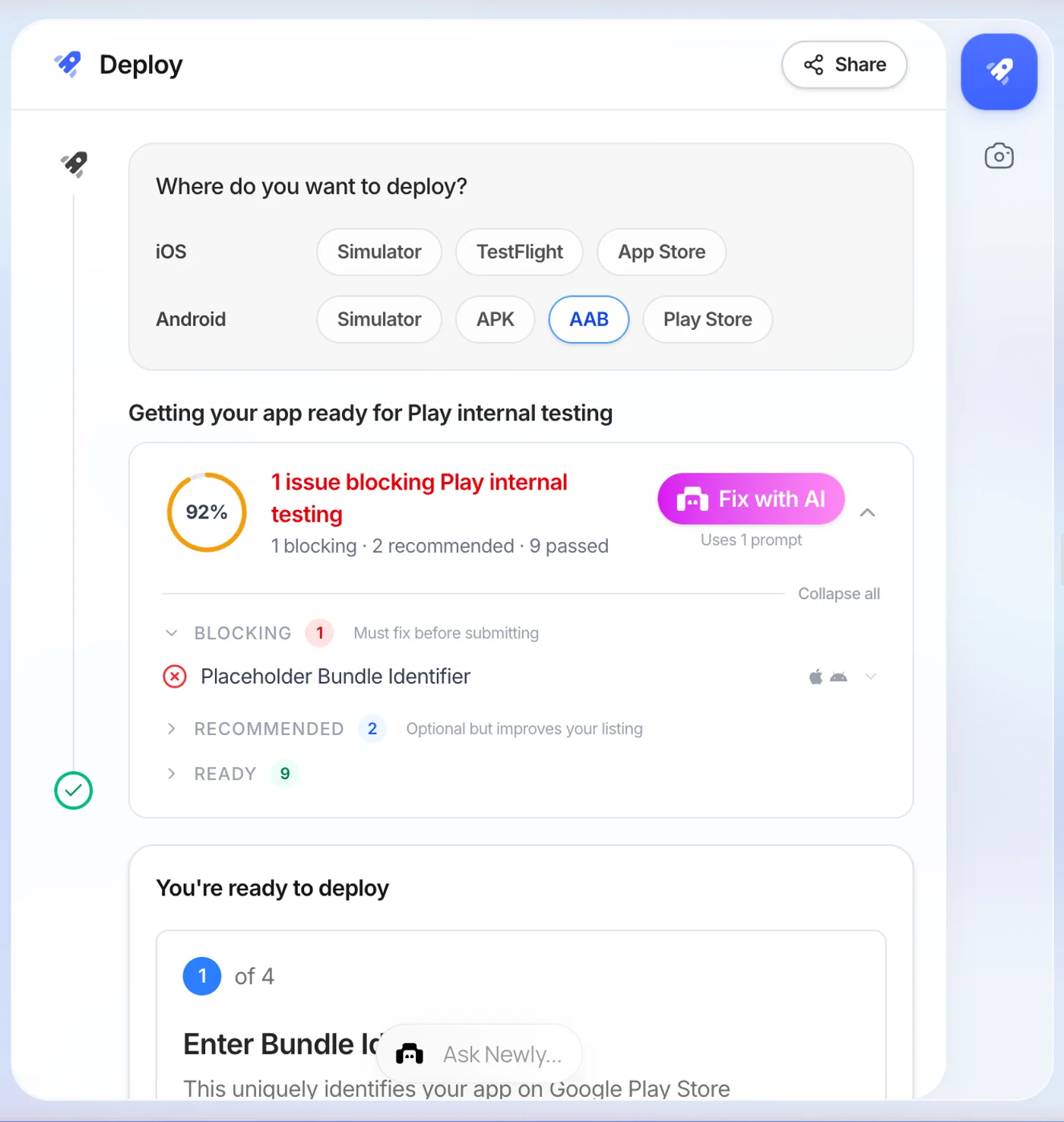
Newly is an AI app builder, you describe an app and it builds and ships a real native one, so signing is part of the build rather than a step you run afterwards. Open Launch in the left nav and the Deploy panel offers four Android targets, Simulator, APK, AAB and Play Store. Two of them decide what happens to your key: APK and AAB. They treat the key very differently, and the difference is the only part worth reading.
- 1
The APK target never asks about a key
Enter a bundle identifier in reverse-domain form, com.companyName.appName, and build. Five to ten minutes later there is a download link and a signed APK on the other end of it. You are not shown a keystore because you are not given one.
- 2
The AAB target opens a four-step wizard
Bundle identifier, then app version with its version name and version code, then the signing key, then the build. Step two carries a real warning worth repeating: Google Play rejects uploads with the same or lower version code as one you have already sent.
- 3
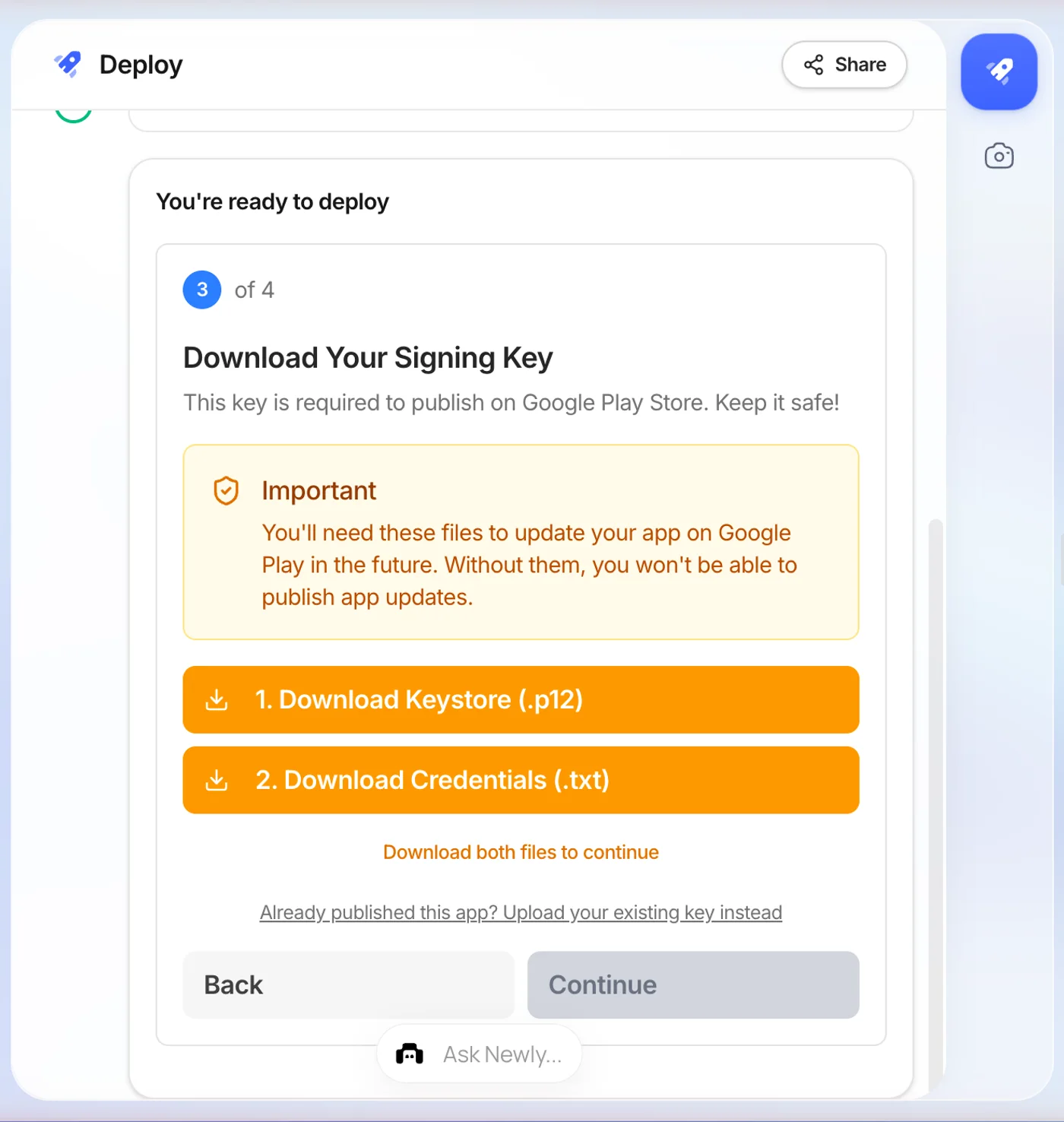
Step 3 of 4 is the one that matters
For a project with no key yet, Newly generates a PKCS#12 keystore in your browser, a 2048-bit RSA key, valid 25 years, alias release-key, with a randomly generated password, and then blocks you. Two amber buttons, “1. Download Keystore (.p12)” and “2. Download Credentials (.txt)”, and the Continue button stays disabled until both are downloaded. Being forced to take the backup before the build starts is a small piece of design that will save somebody’s app.
- 4
Returning to a project you have already published
If a key already exists you get three options: Use Existing Key, Upload a Different Key, or Generate New Key. That third one shows a red warning first, and it is accurate, generating a new key means you cannot update the existing app on the Play Store. The upload option exists for the case where the app was first published from somewhere else and Google expects a key that lives outside this project.
The limitation
Newly will not sign an APK you built somewhere else. There is nowhere to upload a finished .apk, and no plan that changes that, if you came here looking for an APK signer, this is not one.
Two smaller edges are worth knowing before you commit. The keystore wizard only appears on the AAB path, so an APK built for testing arrives signed with a key you never see or export. And there is no free tier at all, which makes it the wrong tool for a one-off signing job and a reasonable one only if you are building the app here anyway.
Everything on this page stops at the APK. Google Play has required Play App Signing for every app created since August 2021, and the bundle format brings its own rules about version codes, upload keys and what Google holds on your behalf, that is covered in detail under signing for the Play Store.
Before you ship
Seven lines, then you are done.
- One keystore per app, generated once, with a validity period ending after 22 October 2033.
- The .jks or .p12 file and its password stored in two places you control, neither of them the project folder.
- The keystore excluded from git. Check .gitignore before the first commit, not after the first push.
- zipalign run before apksigner, never after.
- apksigner verify passes, and --print-certs shows the certificate you expect.
- A note somewhere durable recording the key alias and which app it belongs to. Alias mismatches waste more hours than lost passwords.
- For a Play release: the upload key registered, and the app signing key left to Google.
FAQ
Questions people actually ask.
Create a keystore once with keytool, then sign every build with apksigner. Android documents the commands: keytool -genkey -v -keystore my-release-key.jks -keyalg RSA -keysize 2048 -validity 10000 -alias my-alias creates the key, zipalign -v -p 4 my-app-unsigned.apk my-app-unsigned-aligned.apk aligns the archive, and apksigner sign --ks my-release-key.jks --out my-app-release.apk my-app-unsigned-aligned.apk produces the signed file. Align first and sign second, because apksigner preserves the alignment and zipalign would destroy the signature if run afterwards. Check the result with apksigner verify my-app-release.apk.
Sources
- Sign your app, Android Developers
Upload key versus app signing key, the upload key reset, the 22 October 2033 validity requirement, and the August 2021 Play App Signing cutoff.
- Build your app from the command line, Android Developers
Source of the keytool, zipalign and apksigner commands quoted verbatim on this page.
- Application signing, Android Open Source Project
The v1, v2, v3, v3.1 and v4 scheme specifications and the advice to sign with all of them.
- Behavior changes: all apps, Android 11
The change that stops Android 11 installing or updating APKs signed only with the v1 JAR scheme.
One key. Backed up before the build starts.
Describe the app, and the keystore, the schemes and the alignment are handled on the way to a download link, with the wizard refusing to continue until the key and its password are safely on your machine.
Get a signed APK without touching keytool